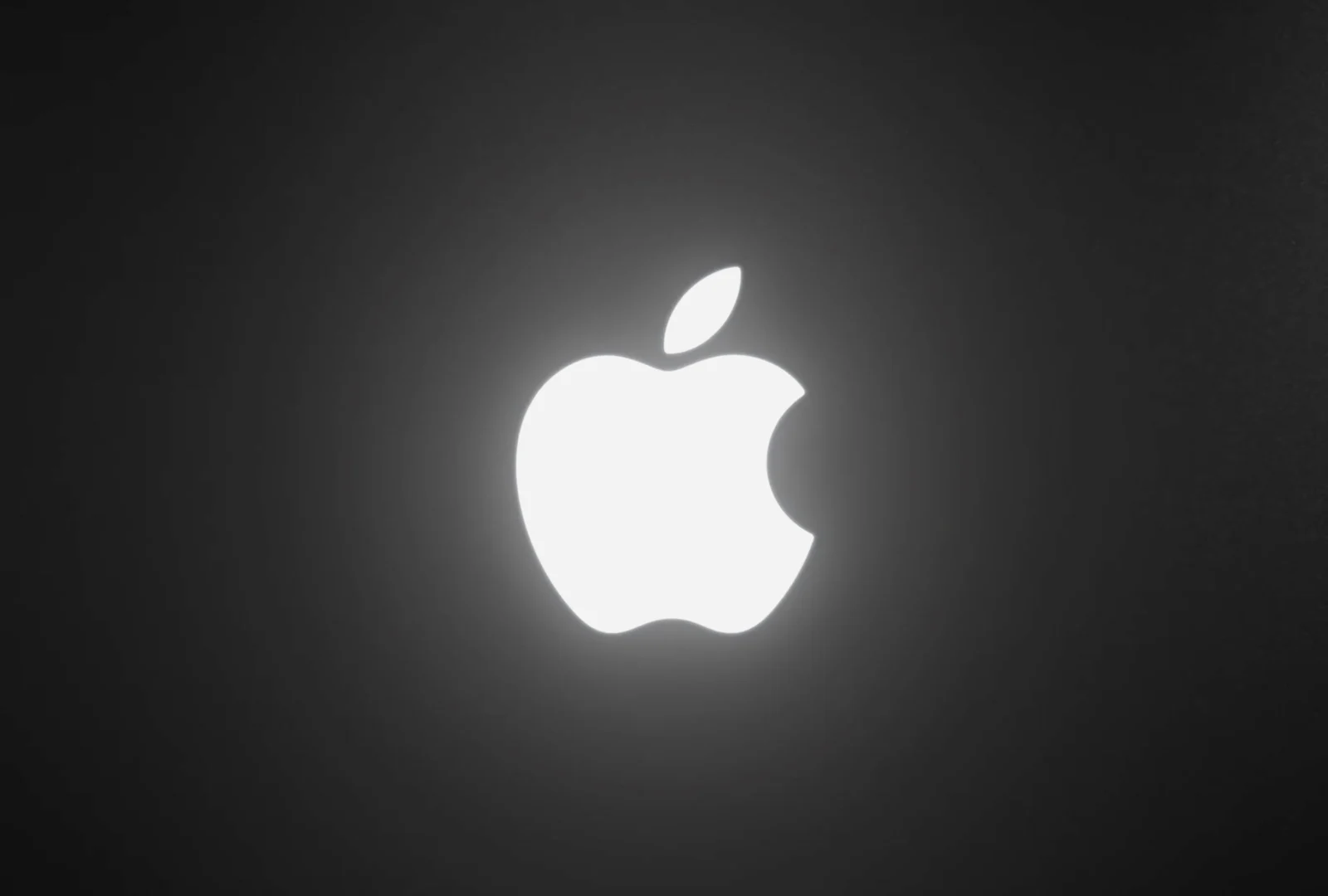

You can turn off the glowing Apple logo on the MacBook Pro with PROLED XDR Display, but there’s no switch in Settings. It takes one Terminal command.
Apple confirmed this in a support document, and it only applies to the PROLED XDR model, since no other MacBook has a glowing Apple logo.
When the glowing Apple logo lights up
If you got yourself the new MacBook Pro with a touchscreen, you’ll see that the Apple logo is turned on by default. It’s on whenever your Mac is awake, and while it’s a fun nostalgic throwback, some people might not like it, especially in the dark.
It adjusts on its own too, dimmer in a dark room, brighter in a bright room, and it follows your screen brightness too. You don’t have any option in the Settings to switch it off or control the brightness levels.
How to turn off the glowing Apple logo
The process to turn off the glowing Apple logo is fairly simple. All you need is a Terminal command. Follow the steps precisely and you’ll be good to go.
Step 1: Open Terminal. It’s in Applications > Utilities, or you can simply press Cmd + Space and type “Terminal”.
Step 2: Paste this and press Return:
sudo defaults write com.apple.CoreBrightness LEBacklightMode -int 0
Step 3: Type your Mac’s password and press Return. You won’t see it as you type, which is normal.
Step 4: The logo goes dark immediately. No restart needed.
That’s all there is to it.
Good to know:
- The glowing Apple logo would turn off for all user accounts on your Mac, even in macOS Recovery.
- If you move to a new Mac with Migration Assistant, the setting carries over.
How to turn the glowing Apple logo back on
If you find your Mac too normal now, and want to switch it back, or for any other reason, you can always switch back to the default settings. Here’s what you have to do.
Step 1: Open Terminal again.
Step 2: Paste this, press Return, and enter your password, just like you did before.
sudo defaults delete com.apple.CoreBrightness LEBacklightMode
Reinstalling macOS also turns it back on.
As mentioned, it’s a fun throwback, but if it bugs you at night or in meetings, it takes ten seconds to turn off. Hopefully Apple adds a proper toggle in the Settings in upcoming updates.